
Real-time translation
How to Translate Speech in Real Time
Turn microphone or system audio into text and a translation in the same view, using a local Ollama model.
How real-time translation works
Speech recognition first produces source text, then the selected local LLM translates it. Normal mode translates a finalized segment. Low Latency mode also sends the changing prediction to the translation task, so it does not have to wait for the entire spoken segment.
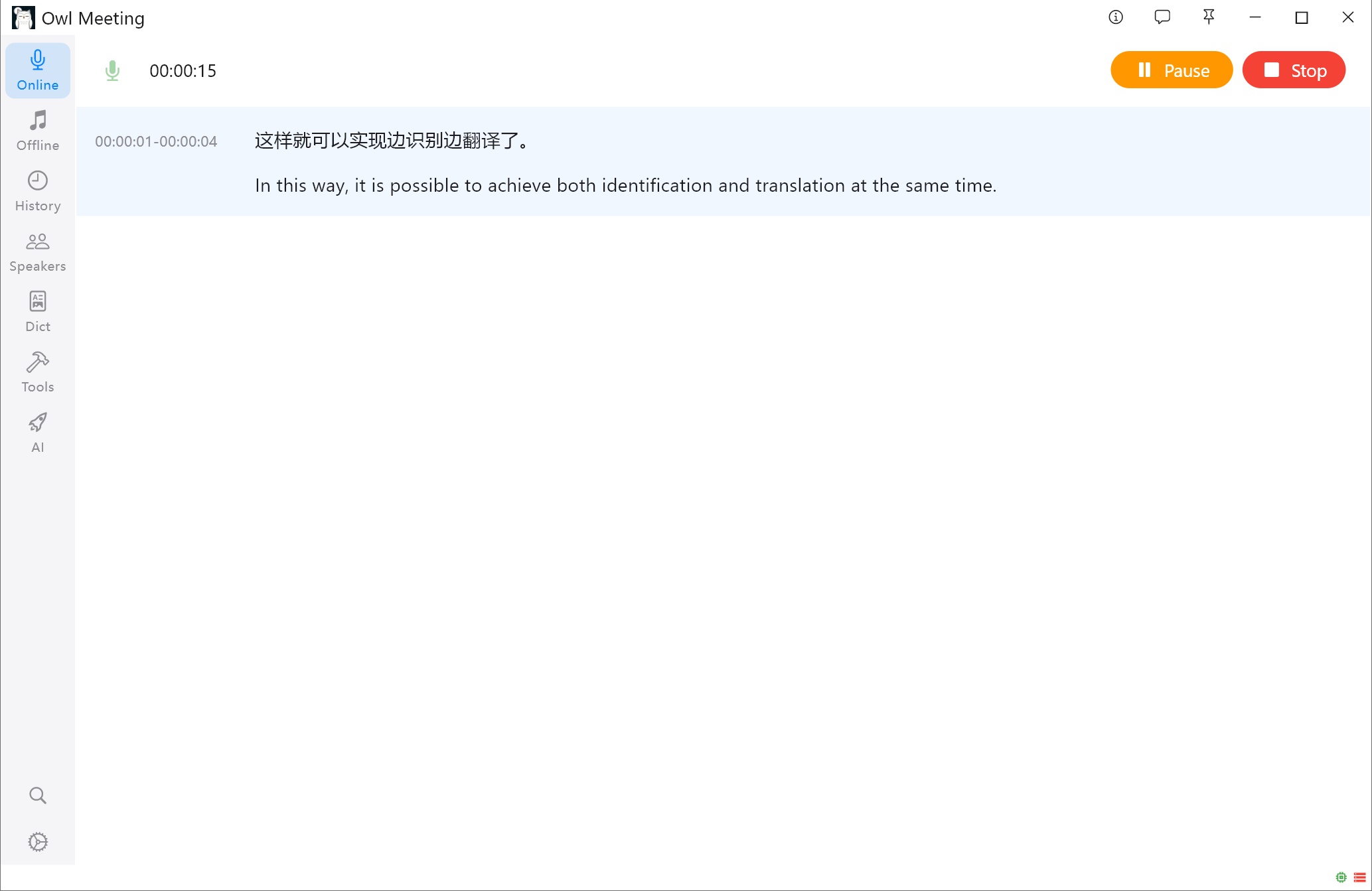
Set up Ollama and the translation task
Hy-MT2-1.8B
A compact model from the Hunyuan Translation 2.0 family, focused on translation across 33 languages plus five Chinese minority-language or dialect varieties. It is well suited to local, real-time translation in Owl Meeting.
- The publisher reports leading results on the open FLORES-200 and WMT25 benchmarks, outperforming several mainstream commercial translation APIs.
- Supports structured, delimiter-aware, contextual, glossary-guided, and style-controlled translation instructions.
- Only 1.8B parameters; its smallest 1.25-bit build is about 440 MB, balancing quality, speed, and on-device resource use.
- API model name
hunyuan-mt2-1.8b-chat- Maximum input
- 4K
- Maximum output
- 4K
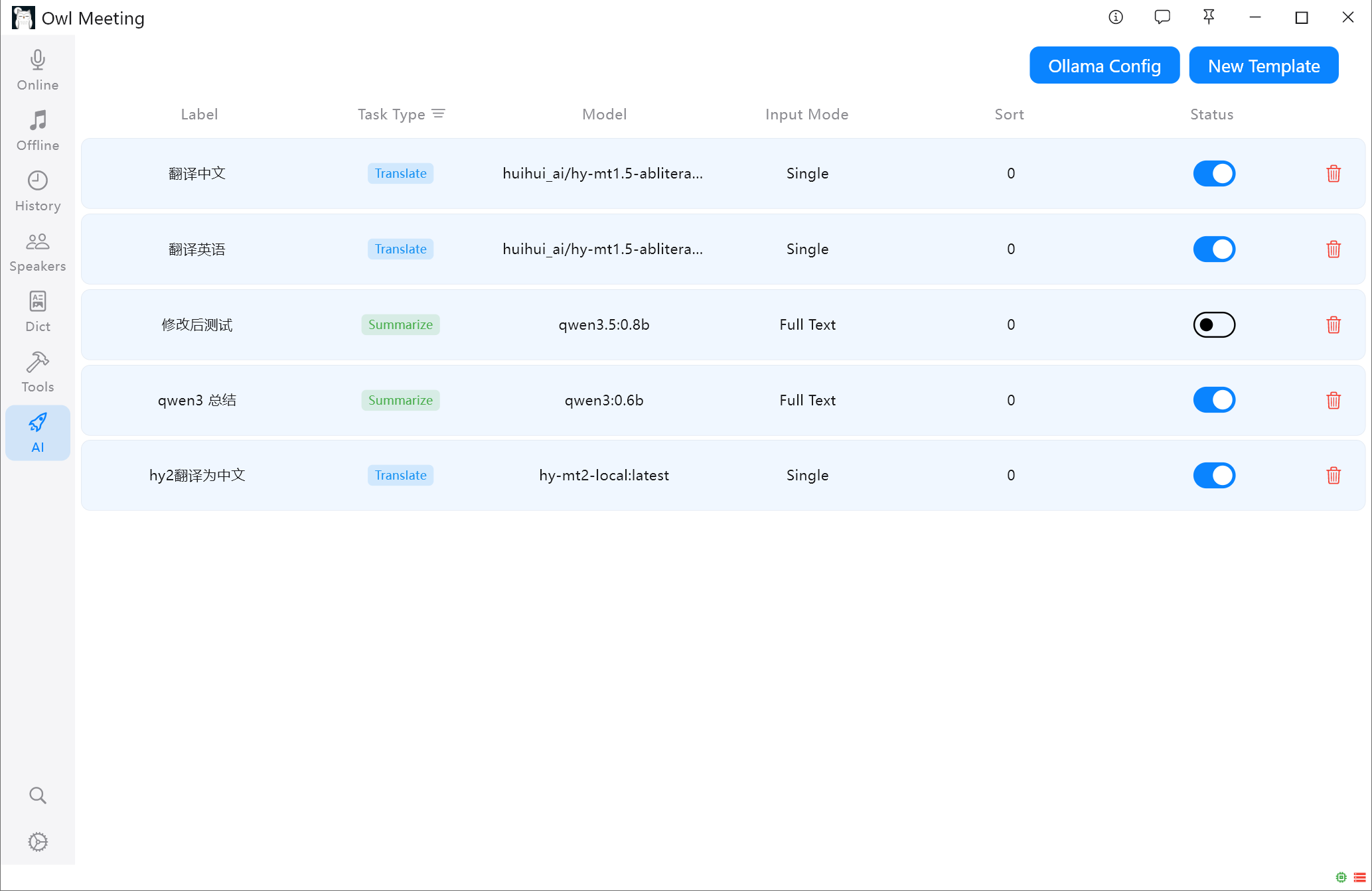
- Install and start Ollama, then download a model that supports the languages you need.
- On the AI page, create a Translation task and set its model, source language, target language, and name.
- Set Input mode to Per segment. Batch and Full text modes are intended for saved transcripts, not live translation.
Choose the right recognition mode
Normal mode
Provides stable recognition results. Translation starts after the current speech segment is finalized.
Low Latency mode
Shows predicted text earlier and translates those predictions in real time. Use this mode when reading the translation during a meeting, lecture, stream, or video.
Start live translation
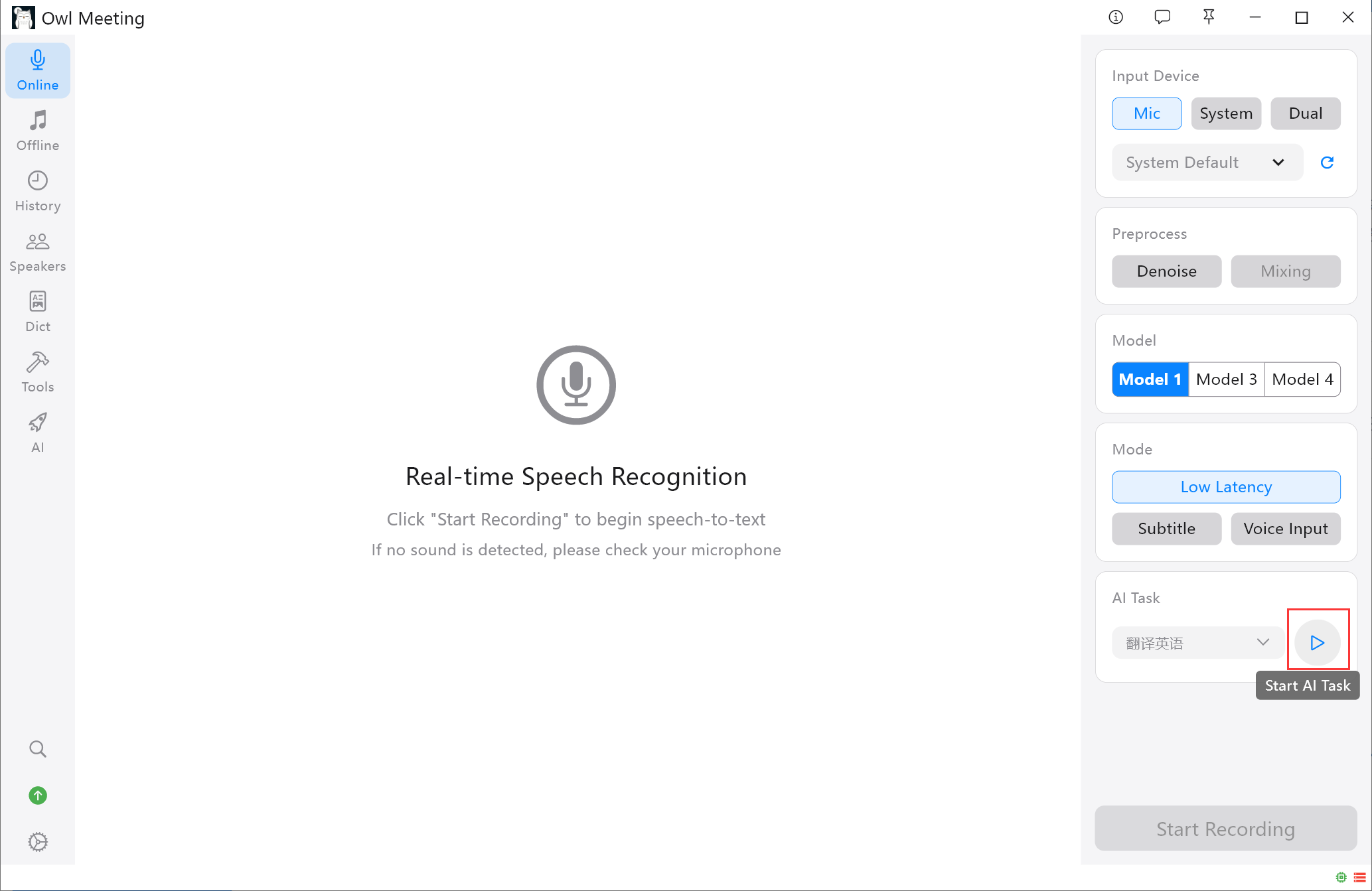
- Choose Microphone for local speech, System audio for video or remote participants, or Dual input for both.
- Select a speech-recognition model that supports the language being spoken.
- Select the enabled translation task and click its blue start button to load the local LLM.
- Start recording. Normal mode adds the translation after each finalized segment; Low Latency mode updates it while speech is still in progress.
Reduce translation delay
- Enable Low Latency mode when you need translation before the segment ends.
- Use a smaller, faster translation model and ask it to output only the translation.
- Reduce other CPU, memory, or GPU workloads and verify that the recognized source text is accurate.
Record the setup before comparing latency
Translation delay is not determined by Owl Meeting alone. Recognition mode, the speech model, the translation model and quantization, prompt length, CPU or GPU, available memory, and competing workloads all affect when text appears.
- Test a short sample that contains the real source and target languages.
- Record the Owl Meeting version, model names, quantization, hardware, and audio source.
- Compare time to the first useful translation and the number of revisions, not only total model speed.
Verify each language pair and important term
A multilingual model may not provide equal quality in every direction. Test names, product terms, numbers, and sentence boundaries on the language pairs that matter to the meeting. A glossary or explicit task instruction can improve consistency, but it cannot repair an incorrect source transcript.
- Check the model card instead of assuming every LLM supports every language.
- Review the recognized source text before diagnosing a translation problem.
- Keep the requested output concise so partial results remain readable in Low Latency mode.
Understand privacy and live-result limits
With a local recognition model and a local Ollama address, recognition and translation can run on the computer. If the task points to an external service, its data handling rules apply instead; verify the configured endpoint before processing a sensitive meeting.
Low Latency mode translates changing predictions. Early words can be revised as more speech arrives, and noise or overlapping speakers can affect both the source and translation. Treat the live result as assistance and review important wording before sharing or exporting it.
Frequently asked questions
Why is there no translation?
Make sure the task is enabled, selected on the Online page, and started with the blue button. Ollama must also be running.
Does translation always wait for the whole segment?
No. Normal mode waits for a finalized segment, but Low Latency mode translates the changing prediction while you speak.
Which languages are supported?
Owl Meeting can translate multiple source languages into the selected target language. The exact coverage is determined by the LLM used by the task.
Test the full path with a short sample
Check the audio source, recognition language, translation direction, selected LLM, and latency before a long meeting.