
Offline transcription
How to transcribe audio and video offline on Windows
A practical path from a local media file to a corrected transcript or subtitle file, including the model, segmentation, speaker, and export decisions that affect the result.
Offline transcription keeps the recognition step on your computer instead of uploading the recording to a web service. That distinction matters for confidential interviews, internal meetings, unreleased media, long recordings, unreliable connections, and any workflow where the source file should remain under your control.
This guide uses Owl Meeting on Windows as the working example. Its recognition models run locally on the CPU, so a dedicated GPU is not required for core transcription. You do need internet access for the initial Microsoft Store installation and model download. After those files are present, the core file-transcription workflow can run offline.
Before you start
Prepare the recording rather than expecting one configuration to fit every source. Listen to a short section and note the spoken language, number of speakers, background noise, overlapping speech, and whether the file has separate left and right channels.
| Recording | Good starting point | Why |
|---|---|---|
| One person, clear audio | Interval segmentation | Speech pauses provide simple, fast boundaries. |
| Interview or meeting | Speaker segmentation | Segments can be grouped by voice characteristics. |
| Noisy field recording | Test denoise on a short sample | Denoising can help, but should be checked against the original. |
| Long recording | Run Test mode first | A short preview can expose a wrong model or segmentation choice before the full run. |
| Stereo with echo or channel imbalance | Compare with a mono conversion | Mono can reduce channel-related interference in difficult sources. |
Owl Meeting accepts common audio and video workflows, including MP3, WAV, M4A, FLAC, MP4, MKV, and MOV. Its built-in media tools can extract or convert audio when necessary. See the file transcription reference for the current format and preprocessing details.
The complete offline workflow
- Prepare local models. Install Owl Meeting from Microsoft Store and open Settings > Models. Download a recognition model that supports the recording language. Do this before moving the PC to an offline or restricted network.
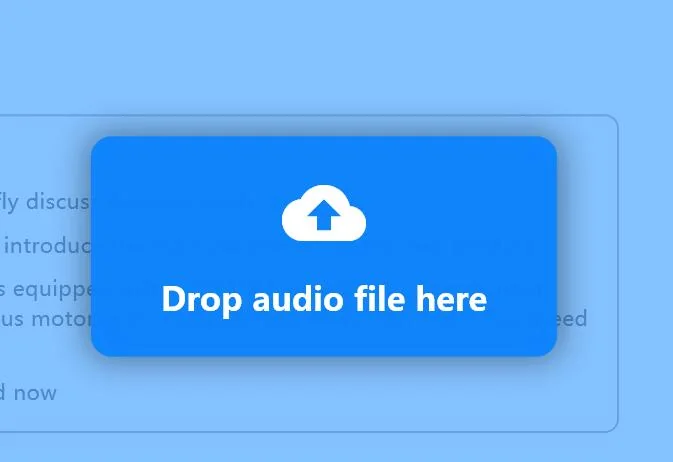
- Import the media file. Open Offline mode. Drag the recording into the window or choose Select File. Preview the audio and confirm that the correct track is audible.
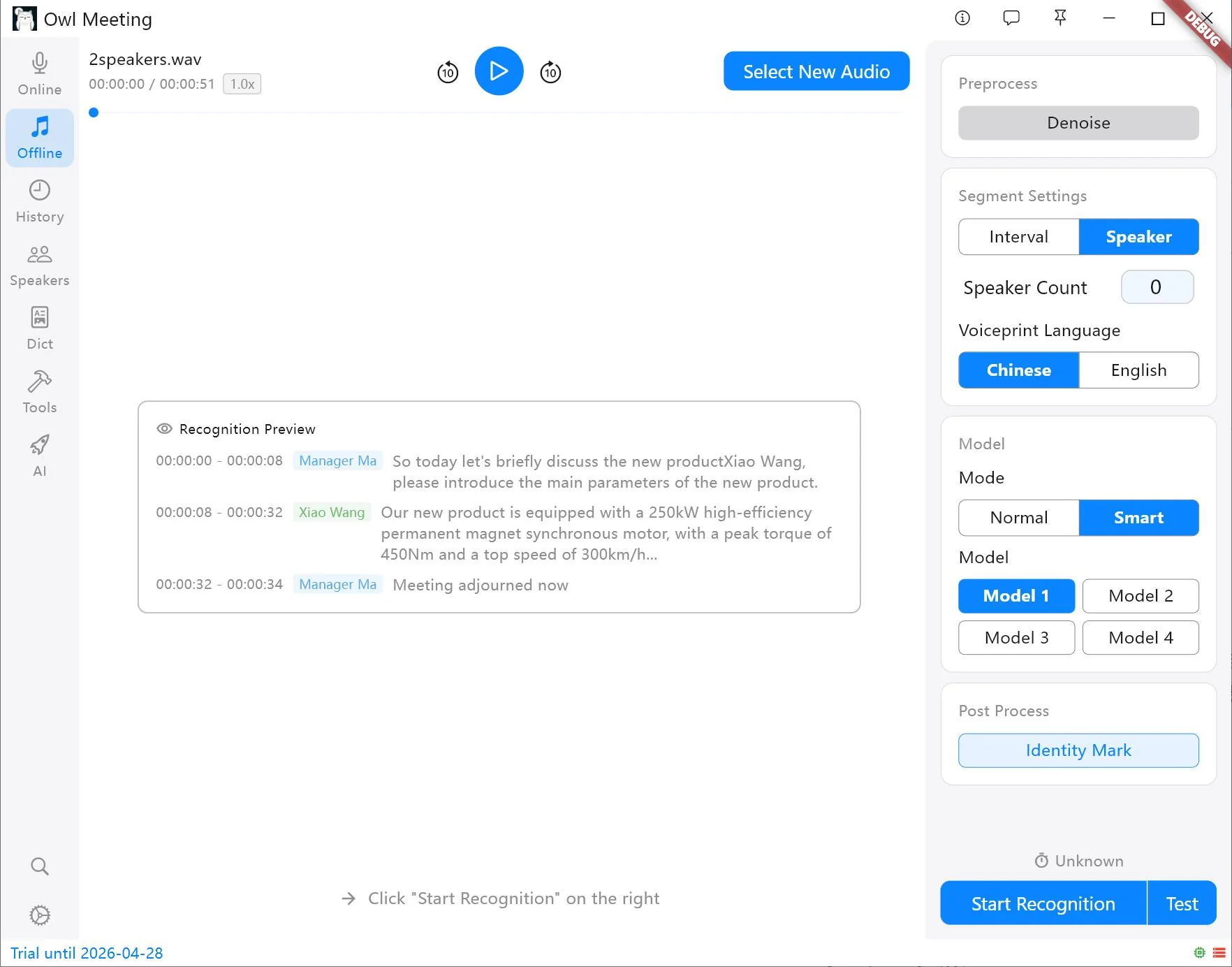
- Choose segmentation. Start with Interval for a monologue, lecture, or podcast with one main voice. Choose Speaker when the transcript should distinguish participants.
- Select the recognition model. Match the model to the spoken language. Model 1 is the general starting point for Chinese, English, Japanese, and Korean; Model 3 covers English and a wider set of European languages. The model list can change as the application evolves, so use the in-app description as the current source.
- Test before a long run. Test mode processes a short sample with the current settings. Check whether words, sentence boundaries, and speaker changes look reasonable. Change one setting at a time so you know what improved or degraded the result.
- Run local transcription. Click Start Recognition. The application performs preprocessing, segmentation, and recognition locally. Processing time depends on CPU, model, audio length, and enabled preprocessing.
- Review and export. Open the completed session in History. Click a text segment to play its matching audio, rename temporary speaker labels, correct recurring errors with batch replacement, and export the required fields as copied text, CSV, or SRT.
Choose segmentation by the output you need
Interval segmentation
Interval segmentation uses voice activity and pauses to divide the recording. It is usually the simplest choice for a single speaker. If sentence beginnings or endings disappear, the voice threshold may be too strict. If every segment becomes a large paragraph, reducing the minimum silence or maximum speech duration can create more readable boundaries.
Speaker segmentation
Speaker segmentation analyzes changes in voice characteristics and assigns temporary labels
such as Speaker_0 and Speaker_1. If you know the exact number of
participants, entering it usually gives the clustering process a stronger constraint.
Automatic speaker count is useful when the number is unknown, but its clustering threshold
may need adjustment.
Diarization does not automatically know a person's real name. To label known people, create local speaker records with clear voice samples, then enable identity marking with the matching voiceprint language. The distinction is explained in speaker diarization vs. speaker identification.
Improve quality without hiding the source
Recognition quality is constrained by the recording. Software cannot reliably reconstruct speech that is absent, clipped, heavily overlapped, or buried under another sound. Preserve the original file and compare preprocessing against it.
- Noise: Try denoise on a representative sample. Listen for removed consonants or artificial speech before using it for the full file.
- Low volume: Adjust voice-activity settings carefully. A lower threshold can retain quiet speech but may also admit more noise.
- Overlapping speakers: Diarization is less reliable when people talk simultaneously. Manual review remains necessary.
- Technical names: Use batch replacement and a custom dictionary for recurring product names, people, abbreviations, or domain terms.
- Long files: Validate the model, language, and segmentation with Test mode before committing to the complete run.
Review, correct, and export
A raw transcript is a draft. Owl Meeting keeps text segments aligned with the source timeline, so selecting a segment jumps playback to the corresponding audio. This makes uncertain words easier to verify than reviewing a plain text block.
For repeated errors, batch replacement is more consistent than correcting each occurrence manually. Dictionary synchronization can save the correction as a future rule. When the content is ready, select the fields and timestamp precision required by the destination:
- Copied text: Best for a document editor or note system.
- CSV: Useful when timestamps, speakers, and text need separate columns.
- SRT: Suitable for importing timed subtitles into a video editor.
The editing and export documentation covers click-to-play review, speaker filtering, batch changes, and available export fields.
What "offline" covers
Core speech recognition, transcript storage, search, dictionaries, and local voiceprint processing can remain on the Windows computer. Audio outputs are stored under the configured local audio path, while application data and models use local application storage.
See Privacy & Storage for the current default paths, model migration instructions, and uninstall behavior.
Frequently asked questions
Does offline transcription require an internet connection?
The first installation and model download normally require internet access. After the required model is stored locally, core file transcription can run without an internet connection.
Should a stereo recording be converted to mono first?
Not every stereo file needs conversion, but mono can reduce channel-related echo or interference in difficult recordings and can make speaker processing more consistent. Compare a short sample before converting an entire archive.
Can the result be exported as SRT subtitles?
Yes. After reviewing the transcript, Owl Meeting can export SRT with timestamps and can also export text-oriented formats such as CSV or copied text.
Try the workflow with a representative file
Use a short sample that contains the same speakers, noise, and language as the full recording. Validate the settings, then process the complete file.