
Meeting capture
How to transcribe online meetings locally on Windows
Capture the right side of the conversation, recognize speech on the PC, and finish with a meeting record you can review and export.
Transcribing an online meeting is different from transcribing an existing recording. The main challenge is not the meeting application itself; it is routing every voice you need into the transcription application without introducing echo, missing one side, or selecting the wrong device.
Owl Meeting provides microphone, system-audio, and dual-input modes on Windows. Recognition runs locally after the model has been downloaded. The meeting service still uses the network for the call, but the transcription engine does not need to upload the captured audio to a separate transcription provider.
Choose the input before the meeting
| Input mode | Captures | Typical use |
|---|---|---|
| Mic | The selected microphone | Face-to-face meetings, lectures, dictation, or your side of a call. |
| System | Audio played by Windows | Remote participants, webinars, streams, or a video playing on the PC. |
| Dual | Microphone and system audio | A remote conversation where both your voice and the other side are needed. |
Dual is the normal starting point for a two-way remote meeting. It is not automatically the best choice in every room. If the speakers from the call are loud enough to enter the microphone again, capturing both microphone and system audio can produce duplicated or echoing speech. A headset reduces that risk because remote audio reaches your ears without being replayed into the room.
Prepare a reliable capture path
- Download the model first. Select a model that supports the meeting language and finish its download before the call.
- Use the final hardware. Test with the headset, microphone, dock, or USB device that will be used in the actual meeting.
- Confirm the Windows devices. A laptop can change its default input or output after a Bluetooth device connects. Refresh the device list when hardware changes.
- Play a sample through the meeting app. Confirm that system capture receives remote audio instead of assuming that visible volume in another application reaches the transcription source.
- Check language and CPU load. Use a model appropriate for the spoken language. If low-latency prediction creates excessive load, increase its partial interval or use normal output.
A 30-second private test call is more useful than changing settings during an important meeting. Speak on the microphone, play remote speech through the selected output, and verify that both appear in the transcript.
Run the meeting transcription
- Open Online mode. Do this before the meeting begins so model initialization or device selection does not interrupt the discussion.
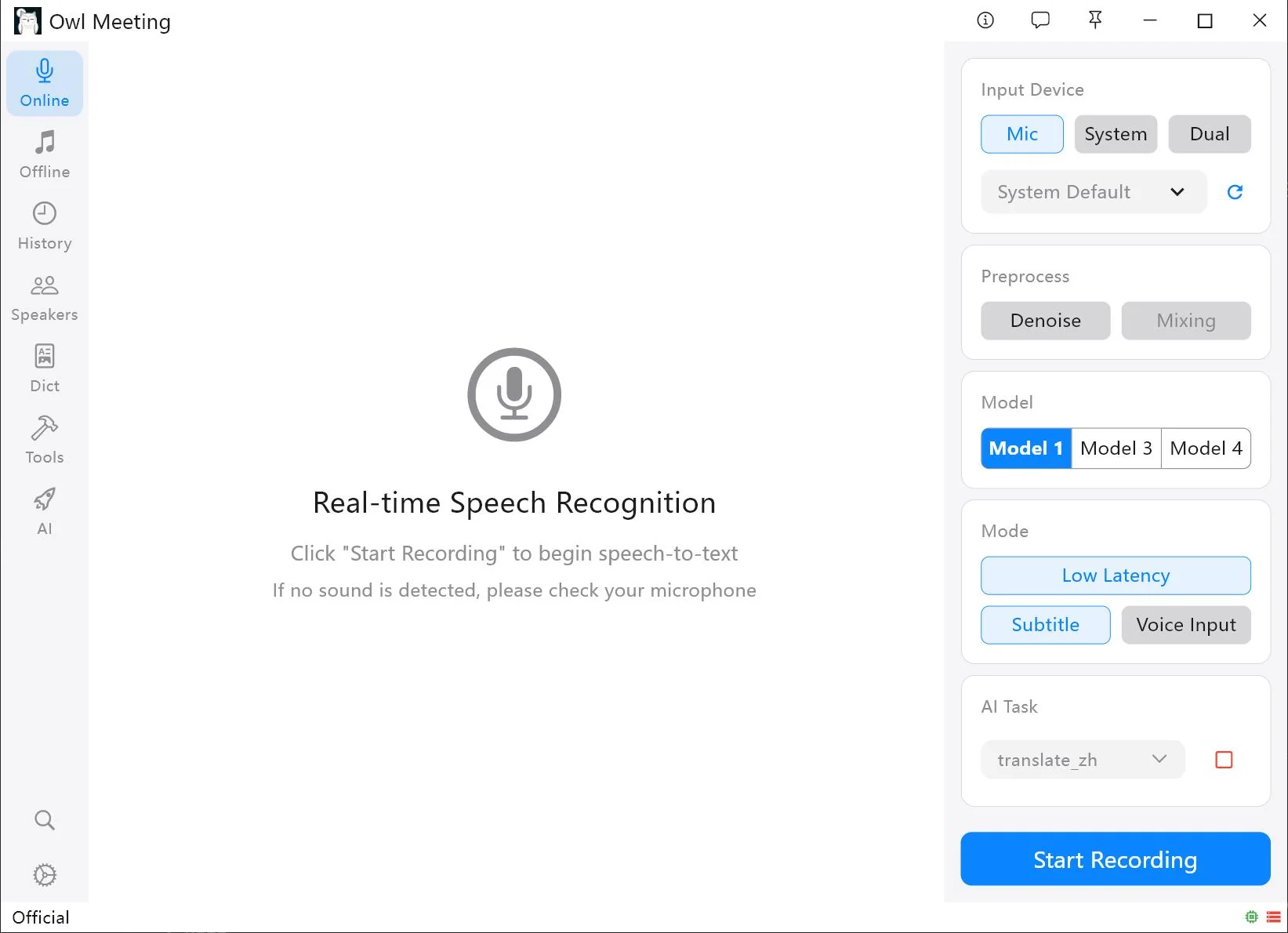
- Select Mic, System, or Dual. For Dual, verify both the microphone device and the Windows playback route.
- Choose the recognition model. Match it to the language actually spoken in the meeting, not just the display language of the application.
- Choose a display mode. Normal output is a dependable starting point. Low Latency shows draft text sooner, while Subtitle opens a floating caption view. Voice Input is intended for inserting recognized text at the active cursor rather than maintaining a conventional meeting transcript.
- Start recording. Begin shortly before substantive discussion. Watch the first few results and audio activity to confirm that the selected sources remain active.
- Stop and review. Open the saved session in History, use timestamp-aligned playback for uncertain sections, correct recurring terms, and export the fields needed for notes or subtitles.
Balance latency, readability, and CPU use
Real-time recognition receives speech in segments. Shorter segments produce text sooner but can reduce context and create fragmented sentences. Longer segments provide more context but delay the result. The best setting depends on whether people need live captions during the call or whether the main goal is an accurate record afterward.
- Missing quiet words: Lower the voice threshold gradually.
- Very large text blocks: Reduce minimum silence or maximum speech duration.
- Short acknowledgements disappear: Reduce minimum speech duration carefully.
- High CPU use in Low Latency: Increase the partial interval or disable low-latency prediction.
- Duplicate phrases or echo: Use a headset, reduce speaker playback, or capture a single clean source instead of both.
The current controls and parameter descriptions are documented in Real-time Transcription.
Turn the session into useful notes
Do not treat live text as final. Names, abbreviations, weak audio, interruptions, and simultaneous speech still require review. Use click-to-play alignment to verify important claims, decisions, dates, and action items against the recording.
Batch replacement is useful for repeated names or product terms. Saving corrections to the custom dictionary can improve future cleanup. If a summary is needed, you can process the corrected text with a locally configured Ollama model.
Understand the local data boundary
Owl Meeting's recognition model and transcript storage can operate locally. That avoids sending a second copy of meeting audio to a cloud transcription service. It does not make the meeting platform itself offline, and it does not override an organization's retention or consent policy.
Recordings and application data are kept in configured local paths. Protect the Windows account, disk, backup destination, and exported files according to the sensitivity of the meeting. See Privacy & Storage for current storage locations.
Frequently asked questions
Which input should I use for a remote meeting?
Use Dual when your voice enters through the microphone and remote participants play through Windows system audio. Use System when only computer playback is needed, and Mic for an in-room conversation.
Why is only one side of the meeting transcribed?
The selected source probably contains only the microphone or only system playback. Switch to Dual and verify both paths with a short test before the meeting.
Does local meeting transcription make recording automatically legal?
No. Recording and transcription rules vary by location and organization. Notify participants and obtain any consent required by applicable law and policy.
Test both sides before the real call
Use the same microphone, output device, meeting application, and recognition model that you plan to use in the meeting.