
Subtitle workflow
How to turn a meeting recording into SRT on Windows
Create subtitles that remain useful after export by treating transcription, speaker review, timing, and playback validation as separate jobs.
An SRT file is a plain-text sequence of cue numbers, start and end timestamps, and subtitle text. It does not contain audio, styling, or a separate speaker field. A useful conversion therefore requires more than changing a file extension: speech must be recognized, divided into readable cues, checked against the recording, and exported with valid timing.
This guide uses Owl Meeting as a local Windows example. The core recognition step runs on the PC after the required model is downloaded. Results are not guaranteed by the format: wording and timing quality depend on the recording, selected model, language, speaker overlap, and review.
Prepare the source you will publish
Use the final cut whenever possible. Removing an introduction, changing playback speed, or replacing the audio after transcription can shift every later cue. Preserve the original and work from a copy if you need to convert channels, extract audio, or try denoising.
| Check | Why it matters | Action |
|---|---|---|
| Audible speech | Recognition cannot recover clipped or absent words | Listen to several representative sections |
| Correct track | A video may contain multiple audio tracks | Confirm all required participants are audible |
| Final duration | Later edits can invalidate timestamps | Transcribe the media version used for delivery |
| Spoken language | Model support must match the speech | Note language changes before choosing a model |
Create timestamped transcript segments
- Import the recording. Open Offline mode and drag in the meeting file or choose Select File. Preview it before starting recognition.
- Choose segmentation. Interval segmentation is a simple starting point for one main voice. Speaker segmentation is more useful when participant changes must be reviewed, but overlapping voices can still be assigned incorrectly.
- Select the language model. Use a downloaded model that supports the language actually spoken. For multilingual meetings, test representative passages rather than assuming one model handles every section equally.
- Run a short test. Inspect words, boundaries, and speaker changes. If preprocessing is needed, compare its output with the untouched source.
- Process the full file. Processing time varies with recording duration, CPU, model, segmentation, and preprocessing. Keep the application open until recognition finishes.
Edit words, speakers, and cue boundaries
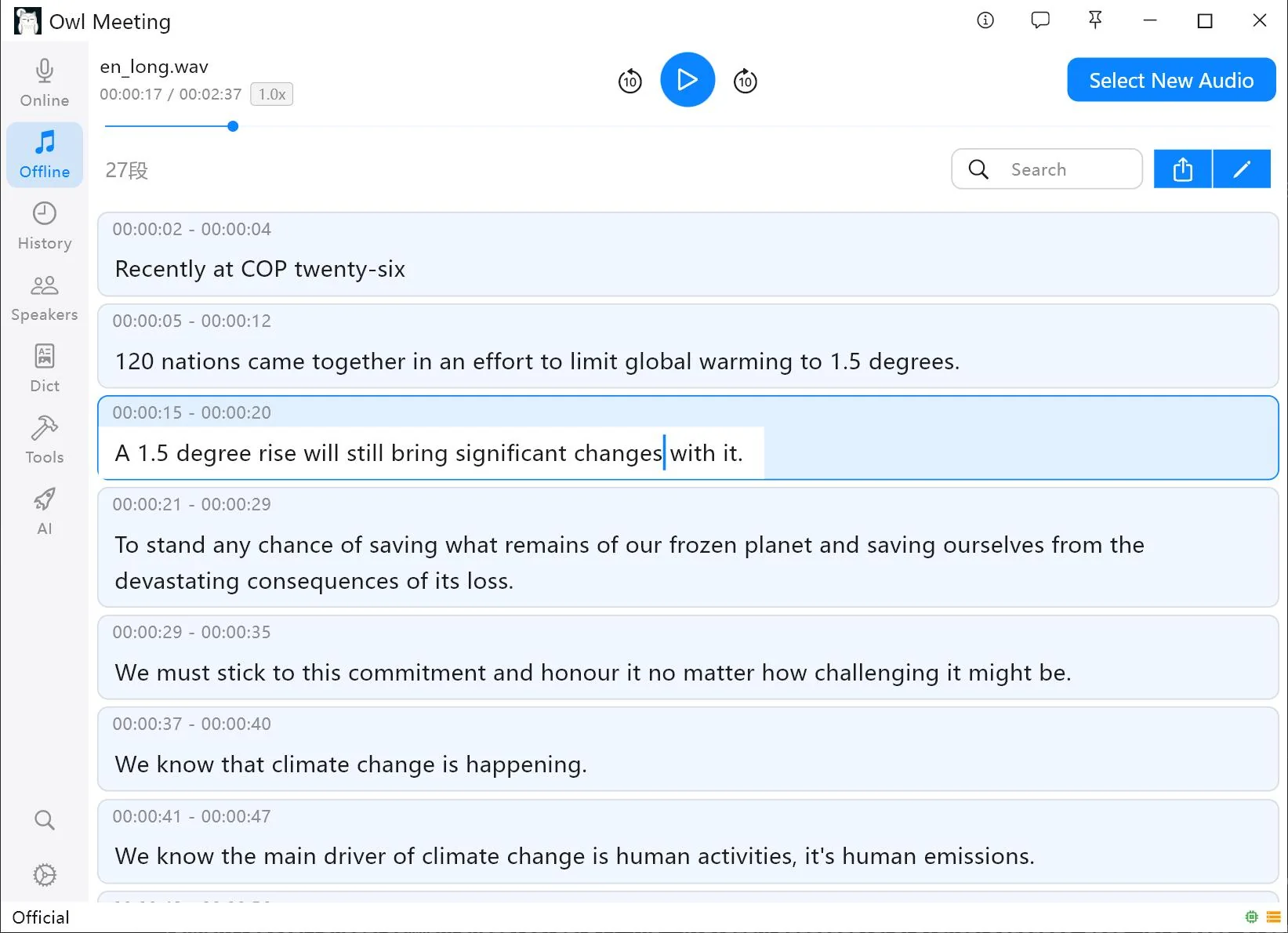
Review high-value content first: names, figures, dates, decisions, and action items. Click a segment to hear its corresponding audio. Correct recurring names consistently with batch replacement or the custom dictionary, then inspect each replacement in context.
SRT can display a speaker label as part of the subtitle text, such as
Alex: We will ship Friday., but the format does not understand who Alex is. If
you include labels, rename temporary diarization labels and verify turns manually. The
diarization and identification guide
explains why voice separation is not the same as knowing a person's name.
Keep cues readable without destroying meaning. Avoid splitting a name, number, or short phrase across cues; avoid leaving a cue on screen after a different speaker begins; and do not force every pause to become a new subtitle. Natural reading boundaries matter more than producing the largest number of segments.
Export and inspect the SRT file
After correction, choose SRT in the export controls and include only text you want viewers to see. Open the result in a text editor for a quick structural check. A cue should resemble:
1
00:00:02,000 --> 00:00:05,400
Welcome to the project review.
The comma before milliseconds and the arrow syntax are part of the format. Do not manually renumber hundreds of cues unless a validator reports a structural problem; fix timing and wording in the transcript before export when possible. See Editing & Export for Owl Meeting's current review and export controls.
Validate in the destination player
- Check three positions. Watch the beginning, middle, and end to detect a constant offset or accumulating drift.
- Check fast exchanges. Ensure cues do not cover the next speaker or disappear before a short reply finishes.
- Check line wrapping. The video player determines visual wrapping, so test the actual player and target screen size.
- Check encoding. Confirm names and non-English characters display correctly.
- Keep the editable source. Preserve the reviewed session so later corrections do not require retranscribing the meeting.
Frequently asked questions
Can an SRT file identify meeting speakers?
Yes. Speaker names can be included in subtitle text after diarization and review, but SRT has no dedicated speaker field. Keep labels concise and verify every speaker change before export.
Why do subtitles drift out of sync?
Drift can come from an edited source video, variable frame-rate conversion, or timestamps generated from a different audio version. Transcribe the final media file and check the beginning, middle, and end in the destination player.
Will converting a recording to SRT fix unclear speech?
No. SRT only stores subtitle text and timing. Recognition quality depends on the recording, spoken language, model, overlap, and preprocessing, so unclear sections still need listening and manual correction.
Create subtitles from a representative meeting file
Test the model and segmentation on a short section, then review the full transcript and validate the exported SRT against the final media.