 Docs
Docs
Real-time Meeting Recognition
Real-time mode is ideal for meetings, lectures, live streaming, or video calls. It not only records text synchronously but also overlays AI translation, correction, and other processing, providing you with high-quality text records during the meeting.
Quick Start
- Select Source: Choose [Mic], [System], or [Dual] in the sidebar.
- Select Model: Choose the appropriate recognition model based on the language.
- Select Mode: Choose the appropriate mode as needed.
- Configure AI (Optional): If features like real-time translation are needed, select and start the AI task below.
- Click Start: Click the [Start Recording] button to begin AI recognition instantly.
1. Audio Input Sources
Depending on your scenario, Owl Meeting provides three flexible schemes:
- Microphone: Captures content spoken through input devices (such as headsets or built-in laptop mics). Suitable for personal notes, speeches, or face-to-face meetings.
- System Sound: Directly captures audio emitted from the computer—playing videos, browser podcasts, or online reports, etc.
- Dual Mode: Simultaneously captures the microphone (your voice) and system audio (the other party's voice). Recommended when using remote meeting tools like Tencent Meeting, Zoom, or Lark.
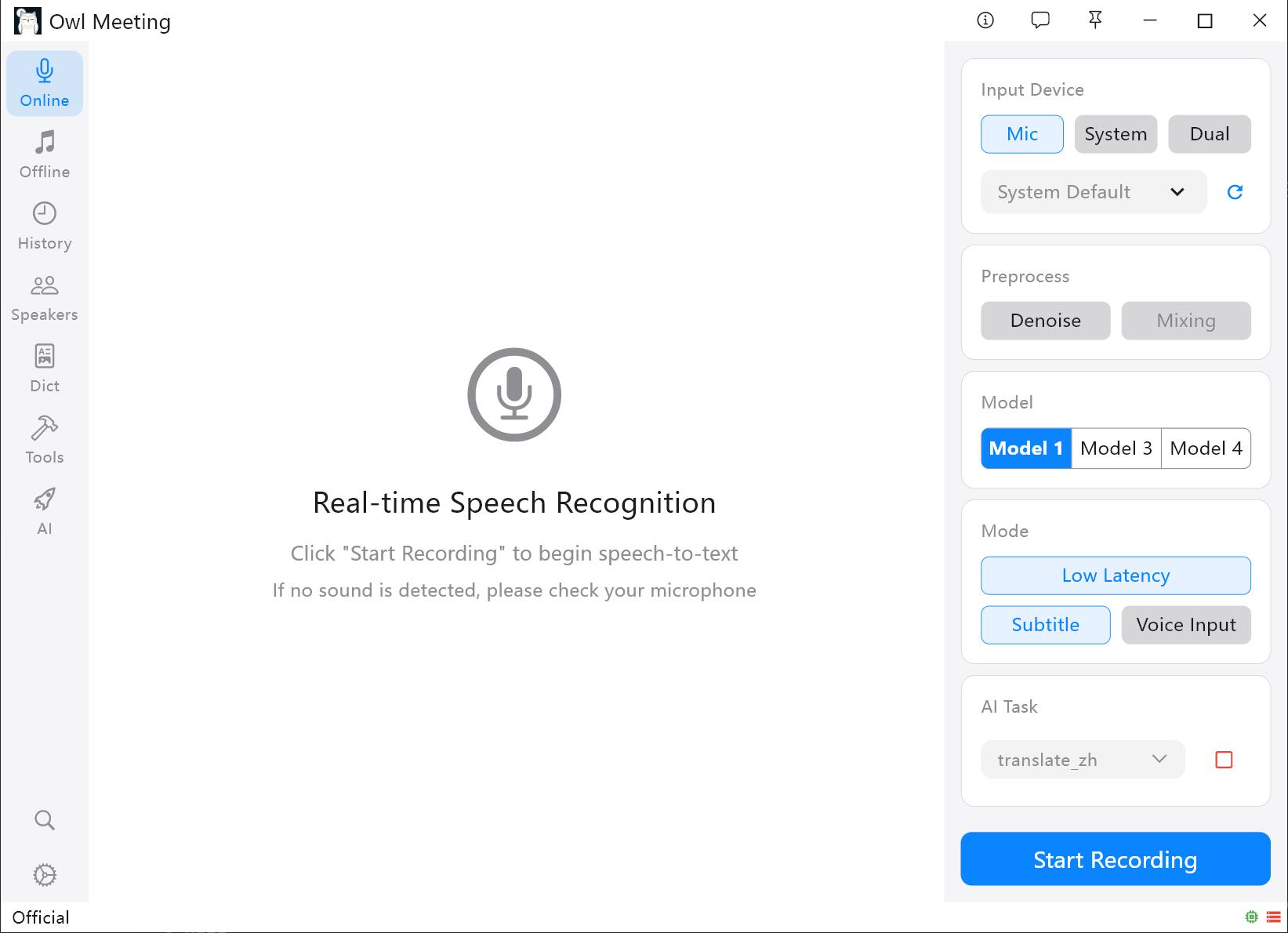 Audio input source selection and sidebar configuration
2. Recognition Pre-processing
Before audio is sent to the recognition engine, you can enable the following options to optimize quality:
- Denoise: Attempts to filter out background environment noise, improving missing words at the start or end of sentences.
- Mixing: Available after enabling [Denoise]. It merges background audio tracks, helping improve recognition accuracy in specific noisy environments. The mixing ratio needs to be tested from low to high according to your actual scenario.
3. Three Interaction Modes: Adapting to Your Workflow
Beyond viewing text in the main interface, you can choose more efficient display methods:
- Low Latency:
When enabled, draft prediction text appears in gray before a sentence is finished, scrolling in real-time with your voice.
- Tip: Adjust "Partial Interval" and "Context Window" in settings to balance latency and CPU usage. - Subtitle Mode:
A semi-transparent floating subtitle window appears on the desktop, which can be dragged freely.
- Scenario: Drag it under the video window to read meeting or live content like watching a movie. Supports simultaneous display of original text and AI results. Subtitle floating window effect
- Voice Input:
Turns Owl Meeting into a voice input tool; recognition results are automatically entered at the current cursor position.
- Advanced Usage: Set wake words (e.g., "Voice Assistant"), auto-sleep after 30s of silence, and wake up by speaking the wake word. Can also work with AI tasks to trigger AI processing via command words before inputting results.
4. Exclusive Settings & Fine-tuning
If you encounter issues during use, they can usually be solved by adjusting the following parameters:
| Scenario | Adjustment Suggestion |
|---|---|
| I am speaking, but the beginning or end of my sentences are being dropped. | Lower [Voice Threshold]. Making it lower makes the software more sensitive. |
| Each transcription outputs a massive block of text, making it slow and hard to read. | Lower [Min Silence (s)] to let the model segment faster. |
| Some very short phrases (e.g., "OK", "Hmm") are not being recognized. | Lower [Min Speech (s)]. |
| Captions pop up in huge chunks, making them hard to read; or low-latency mode is getting slower. | Lower [Max Speech (s)]. By limiting single processing duration, results are outputted sooner. Reducing this can significantly improve response speed when using Model 2 or Model 4. |
5. FAQ & Tips
- Q: How do I output Traditional Chinese results?
A: Switch [Chinese Conversion] to the corresponding Traditional option in "Settings -> Online". - Q: "Please click the blue button above" prompt when starting AI?
A: Real-time AI tasks (like translation, correction) require the AI engine to be started in the sidebar first. Follow the prompt to complete the start. - Q: CPU usage is too high during recognition?
A: If [Low Latency] mode is enabled, try increasing the "Partial Interval" (e.g., to 0.8s) to reduce load. You can also turn off low latency and use normal mode. - Q: Where are recordings saved?
A: By default, they are saved in theMusic\owl_meeting\audiodirectory. You can customize the path in "Settings -> General". See the Privacy & Storage document for details.
Privacy Promise: All real-time transcription in Owl Meeting is completed locally. No internet connection is required for processing. Your meeting audio and text records always stay on your computer.