 Docs
Docs
Voiceprint and Speaker Management
The voiceprint library is the core function of Owl Meeting to achieve "knowing who is speaking." By pre-recording the voice samples of each person, the system can automatically identify and label the speaker's name during file transcription, and even specify the most suitable recognition model for different people.
1. Adding a Speaker
- Enter [Speakers] in the left toolbar.
- Click [Add Speaker], fill in the name (required) and remarks (optional).
- Assign a recognition model for the speaker: When [Smart] in File Transcription is turned on, the system will automatically use the model specified here to recognize the speaker's voice.
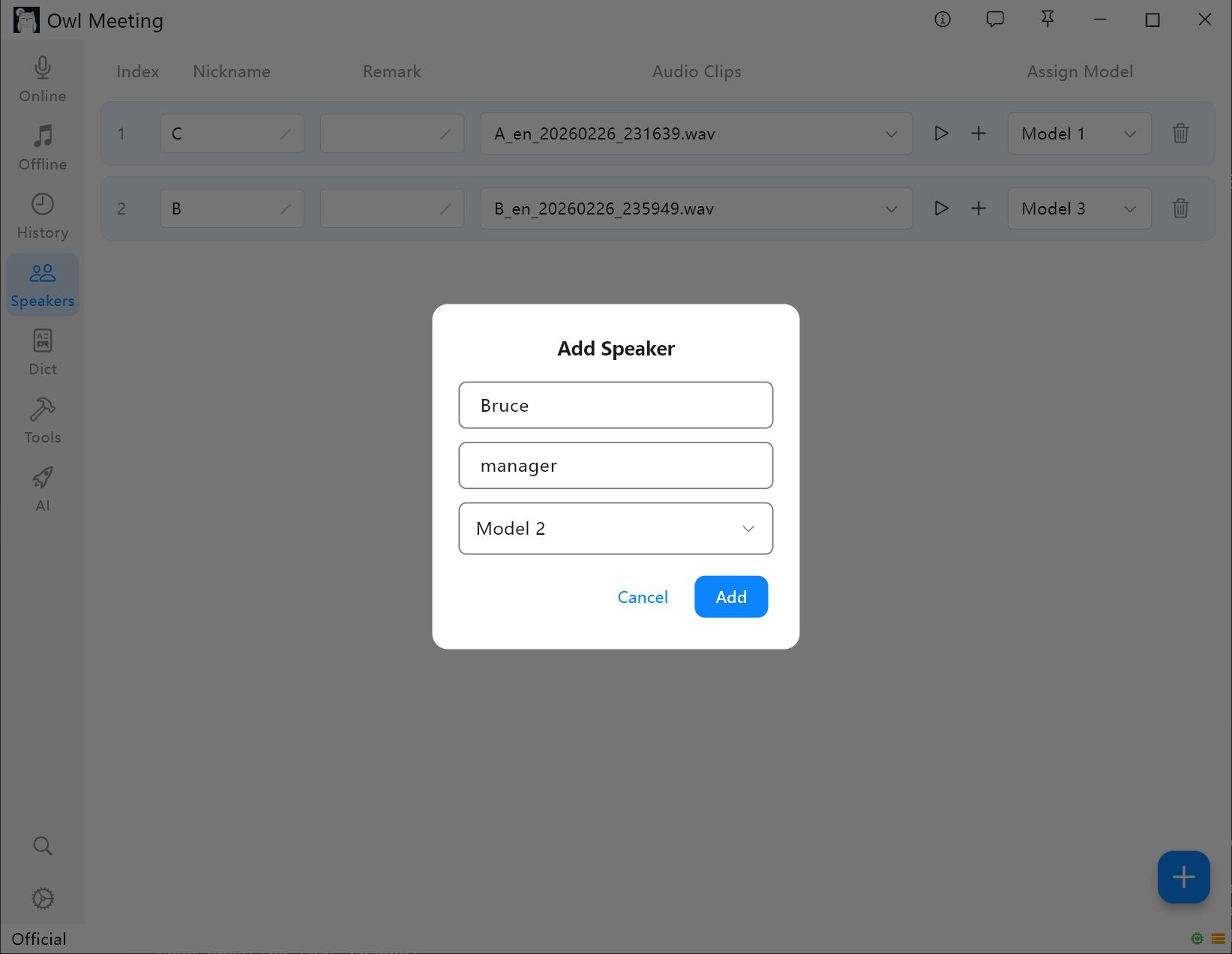 Voiceprint Library Management Interface
2. Adding Voiceprint Samples
- Select a speaker and click [Add Audio].
- Select an audio file containing the speaker's clear human voice.
- Set the start/end time in the cropping window, and click audition to confirm.
- Select [Voiceprint Language]: Select [Chinese] for Chinese samples and [English] for English samples. Other languages can be selected based on the language family.
- Click save, the system will automatically extract the voiceprint features and associate them with the speaker.
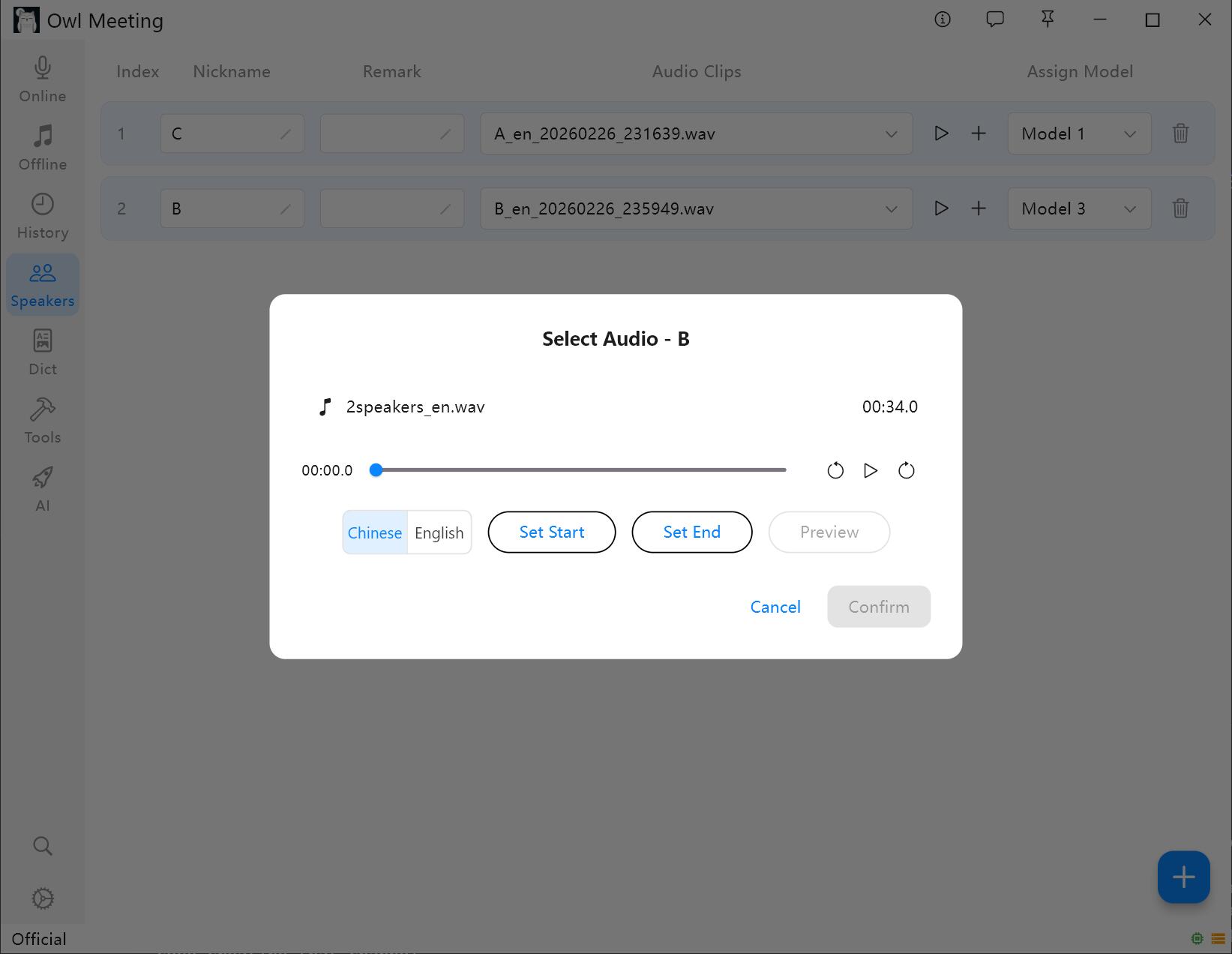 Voiceprint Sample Addition and Cropping
Best Practices for Sample Collection
- Audio Quality: Choose clips with a quiet background and only the target speaker's voice, and avoid segments where multiple people are speaking at the same time.
- Duration Recommendation: Each sample segment should be 5-30 seconds. Features are insufficient if it's too short, and there is no additional benefit if it's too long.
- Multiple Samples: A speaker can have multiple samples added. If the same person has a large difference in timbre under different scenarios (such as face-to-face/phone), adding multiple samples from different scenarios can improve the recognition rate.
- Language Match: The language selected when adding samples must be consistent with the "Voiceprint Language" in the File Transcription settings; otherwise, the matching will completely fail. The feature spaces of the Chinese and English voiceprint models are incompatible with each other.
3. Daily Maintenance
- Modify the speaker's name, remarks, and specified model at any time.
- Switch between viewing different samples and audition them directly.
- When deleting a sample, the corresponding local audio file will be cleaned up at the same time.
4. How Voiceprint Library Takes Effect in Transcription
The voiceprint library mainly plays a role in Offline File Transcription. To have the transcription results automatically display the speaker's name, the following conditions need to be met simultaneously:
- Select [Speaker] as the segmentation method.
- Turn on the [Identity Mark] switch.
- The [Voiceprint Language] in the File Transcription settings is consistent with the language selected when adding samples.
After meeting the above conditions, the speaker tag in the recognition result will be automatically replaced with the real name entered in the voiceprint library.
5. FAQ and Troubleshooting
- Q: Why do the recognition results only show Speaker_0, Speaker_1, and no names?
A: Please check the three items in "How Voiceprints Take Effect in Transcription" one by one. The most common reason is forgetting to turn on [Identity Mark] or mismatching the voiceprint language. - Q: Names are tagged, but they are incorrectly assigned to the wrong people?
A: Try to increase the [Identity Threshold] (in the [Separation] area of the File Transcription settings), or re-add clearer voiceprint samples for the corresponding speaker. - Q: The number of people automatically recognized is incorrect?
A: It is recommended to manually specify the "Number of Speakers" in the settings. If using the automatic mode, you can fine-tune the "Clustering Threshold" to control the system's sensitivity to sound differences.
Suggestion: Add 1-2 pieces of clear human voice samples for each common participant when
establishing the library. Once the voiceprint library is established, all subsequent file transcriptions can
automatically identify identities without repeated configuration.